
The Software Defined Vehicle (SDV) Gateway on In-Vehicle Infotainment (IVI) systems facilitates communication between IVI systems and remote SDV services. The gateway lets original equipment manufacturer (OEM) Java apps and native services, such as vehicle hardware abstraction layer (VHAL), interact with SDV services. The gateway uses established communication methods, including service registration, discovery, and remote procedure calls (RPCs).
This gateway fulfills specific AAOS SDV project requirements, such as enabling a VHAL reference implementation using SDV Data Tunnel for property information. It also allows Java and Kotlin Android apps on IVI to use the SDV Comms stack, register as services, find other SDV services, and communicate with them.
For the SDV Gateway code locations and example SDV Gateway clients, see Code locations.
SDV Gateway integration models
Use SDV-IVI Comms through the SDV Gateway on IVI architecture
The SDV Gateway interacts with Java apps, native services, the SDV Comms stack, and the vehicle network. Figure 1 illustrates these interactions:
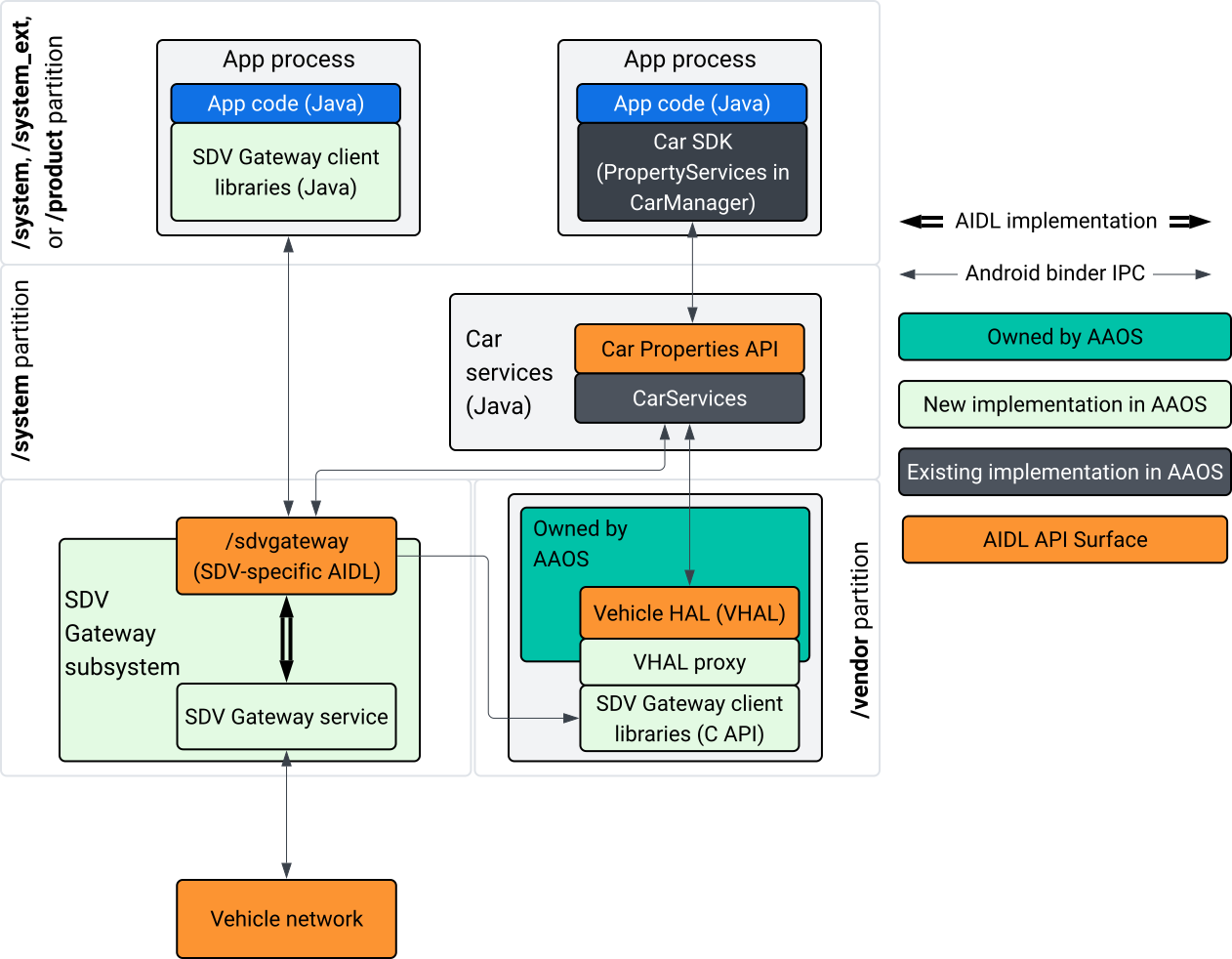
Figure 1. SDV Gateway interactions.
In this system diagram:
- Apps interact with the SDV Gateway through its client services.
- The AAOS SDV SDK provides you with:
- ISdvGateway AIDL API for interprocess communication.
- Comms libraries for network interaction.
- Convenience C API for native service integration.
- The ISdvGateway AIDL API is implemented by the SDV Gateway service and subsystem.
- The SDV Gateway service manages:
- Bidirectional service discovery.
- Communication with remote SDV services.
- Core business logic.
- The SDV Gateway subsystem connects to the vehicular network.
- Native services, including the VHAL implementation, can use the ISdvGateway AIDL API directly or through the SDK's C API.
- The VHAL proxy serves as a reference VHAL implementation, incorporating VSIDL mapping integration.
Integration model for SDV Gateway on an IVI native service
The integration model is illustrated in Figure 2:
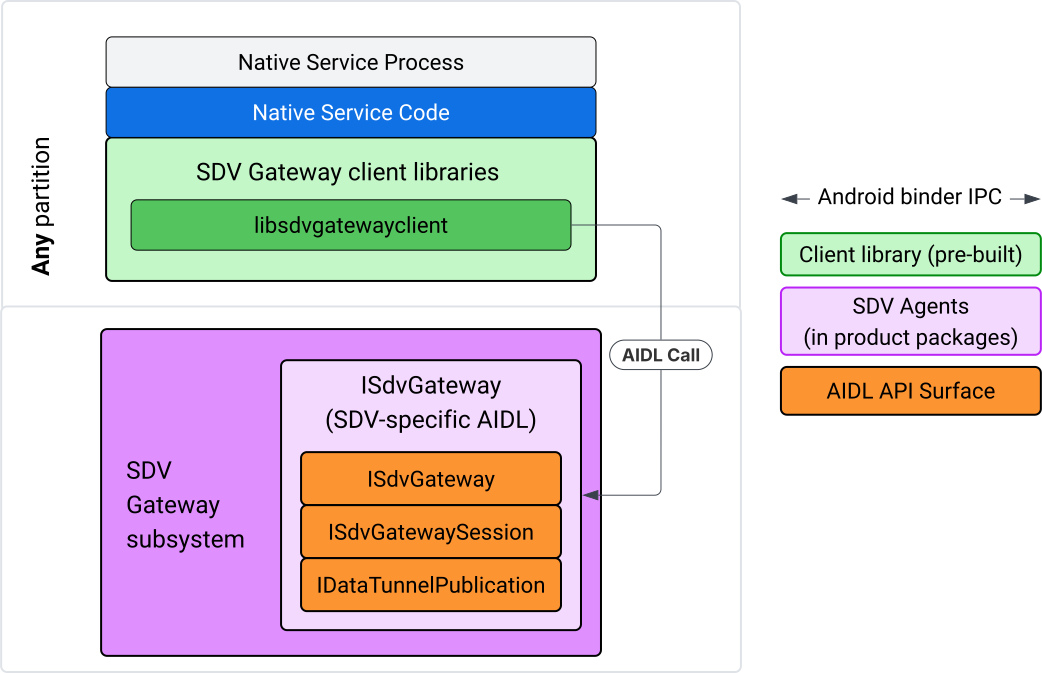
Figure 2. SDV Gateway integration model.
Use SDV Gateway on an IVI native service
Figure 3 illustrates the use of the SDV Gateway on IVI:
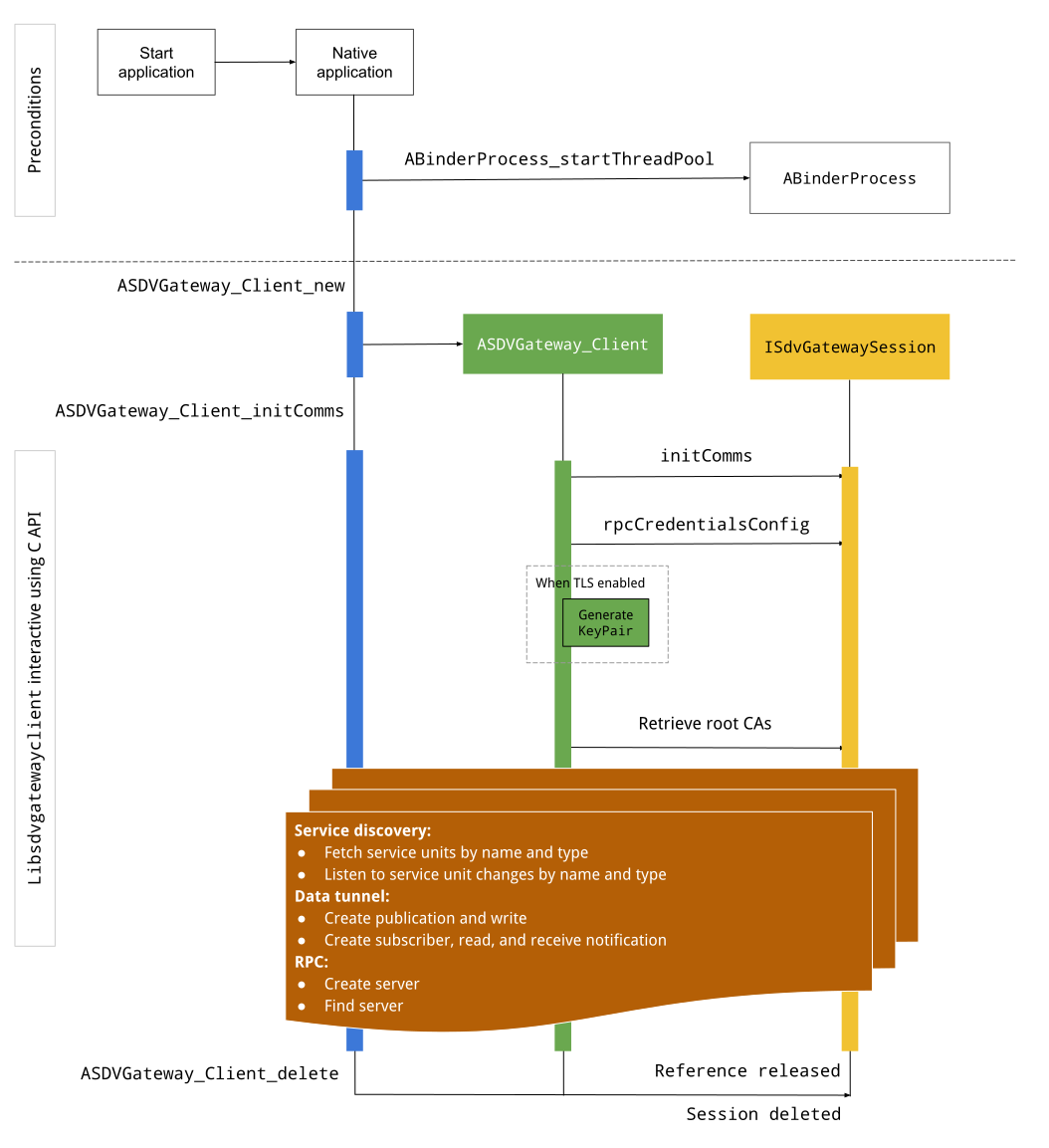
Figure 3. SDV Gateway on IVI.
Preconditions
Start the Binder thread pool:
SDV Gateway client library requires a started Binder thread pool to receive asynchronous callbacks from Binder services.
The API needed to create an SDV Gateway client fails when a Binder thread pool is not started.
Include native Gateway client library
The Native Gateway Client library exposes a C API. Add an instance of
libsdvgatewayclient as a dependency to use the C API:
cc_binary {
    name: "your_binary_name",
    srcs: ["main.cpp"],
    shared_libs: [
        "libsdvgatewayclient",
    ],
}
Load the native Gateway client
#include "libsdvgatewayclient.h"
Create a native client instance
ASDVGateway_Client* client;
ASDVGateway_StatusCode_t statusCode = ASDVGateway_Client_new(
     &client, /*outStatus*/nullptr);
After the client is created, the client:
Holds state for all subsequent interactions with the Gateway service.
Acts as the context of all interactions with other SDV-enabled services and is passed as the first parameters to the C API functions.
Status codes and error messages
Most C API functions have this definition:
ASDVGateway_StatusCode_t ApiFunctionName(..., ASDVGateway_Status_t* outStatus);
To evaluate success, you can inspect the returned status code, which is of the
type ASDVGateway_StatusCode_t. You can also pass a pointer to a structure
where the function can fill the status code and an error message. The pointer is
passed as the last parameter, named outStatus. A null value means that the
output structure isn't used.
The caller must allocate the memory status structure for the error message. The status structure can hold both the status code and an error message. An example of retrieving the error message when creating a new client is available.
To evaluate success:
Inspect the returned status code, which is of the type
ASDVGateway_StatusCode_t.Pass a pointer to a structure where the function can fill the status code and an error message.
- The pointer is passed as the last parameter, named
outStatus. - A null value means the output structure isn't used.
- The caller must allocate the memory status structure for the error message.
- The status structure can hold the status code and an error message.
- The pointer is passed as the last parameter, named
Here's a sample that shows how to retrieve the error message for a new client:
#include <iostream>
#include <array>

struct StatusWithErrorMsg : ASDVGateway_Status_t {
    StatusWithErrorMsg() {
        // Ensure the base struct pointers point to our internal buffer
        errorMessage = errorMessageBuffer.data();
        maxErrorMessageSize = errorMessageBuffer.size();

        // Good practice: Zero-initialize the buffer
        errorMessageBuffer.fill(0);
    }

    std::array<char, 256> errorMessageBuffer;
};

// --- Execution ---

ASDVGateway_Client* client = nullptr;
StatusWithErrorMsg status;

// Initialize the client
ASDVGateway_StatusCode_t statusCode = ASDVGateway_Client_new(&client, &status);

// Log Results
std::cout << "Returned statusCode:    " << statusCode << std::endl;
std::cout << "Status Struct Code:     " << status.statusCode << std::endl;
std::cout << "Status Error Message:   " << status.errorMessage << std::endl;
In this example:
The status code contained in the status structure has the same value as the returned status code.
The error message is filled only to the
maxErrorMessageSizecharacter limit (including the null terminating character\0). If no error occurs (status code isOK), the error message is an empty string.
Init comms
Init comms initializes the communication between the caller app and other apps using the SDV Comm Stack and the SDV Gateway. Init comms can be called in both of these contexts::
After the client is created.
Before any Data Tunnel, RPC, or Service Discovery interactions.
Here's an example:
ASDVGateway_InitCommsParams_t params{
.packageName = "android.sdv.samples.gateway.client",
.serviceBundleName = "NativeTestApp",
.serviceInstanceName = "default",
};
// Initialize communications and capture the status code
ASDVGateway_StatusCode_t statusCode = ASDVGateway_Client_initComms(client, ¶ms, &status);
// Recommended check
if (statusCode != ASDVGateway_StatusCode_OK) {
std::cerr << "Failed to init comms: " << status.errorMessage << std::endl;
}
Service discovery
You can receive notifications when service units of a specific type or name are registered or unregistered. The callback function is notified in a thread owned by the gateway client. This callback is initially triggered with all service units registered right after the C API call. After the initial trigger, notifications continue with updates until the listener is explicitly unregistered.
class NativeSdvGatewayTestApp {
public:
    static void ServiceUnitChangeListenerCallback(
        const ASDVGateway_ServiceUnitChangeEventType eventType,
        const ASDVGateway_ServiceUnitDefinition* serviceUnitDefinition,
        void* userData
    ) {
        auto* testApp = reinterpret_cast<NativeSdvGatewayTestApp*>(userData);

        if (testApp) {
            // Logic to react when services are registered or unregistered
            // e.g., testApp->handleServiceChange(eventType, serviceUnitDefinition);
        }
    }
};

// --- Listener Registration ---

// Ensure thisApp remains in scope as long as the listener is active
NativeSdvGatewayTestApp* thisApp = get_current_app_context();

ASDVGateway_UnitType_t unitType{
    .sdvPackageName     = "android.sdv.samples.sdv_gateway",
    .serviceBundleName  = "DtPublisher",
    .unitTypeName       = "TirePressure",
};

// Register the listener
ASDVGateway_Client_registerListenerForServiceUnitChangeByType(
    client,
    &unitType,
    NativeSdvGatewayTestApp::ServiceUnitChangeListenerCallback,
    static_cast<void*>(thisApp), // userData
    &listenerHandle,
    &status
);

// --- Cleanup ---

// Unregistering stops all notification to the callback function
ASDVGateway_Client_unregisterListenerForServiceUnitChangeByType(
    client,
    listenerHandle,
    &status
);
To retrieve the registered service units without further notifications, use the
ASDVGateway_Client_fetchServiceUnitsByType and
ASDVGateway_Client_fetchServiceUnitsByName APIs.
class NativeSdvGatewayTestApp {
public:
    /**
     * Callback triggered for each service unit found that matches the requested type.
     */
    static void FetchServiceUnitsCallback(
        const ASDVGateway_ServiceUnitDefinition* serviceUnitDefinition,
        void* userData
    ) {
        auto* app = reinterpret_cast<NativeSdvGatewayTestApp*>(userData);

        if (serviceUnitDefinition) {
            // The service unit is registered with service discovery.
            // Example: processServiceUnit(serviceUnitDefinition);
        }
    }
};

// --- Execution ---

ASDVGateway_UnitType_t unitType{
    .sdvPackageName     = "android.sdv.samples.sdv_gateway",
    .serviceBundleName  = "DtPublisher",
    .unitTypeName       = "TirePressure",
};

// Context used to differentiate between various fetchServiceUnits calls
void* userData = static_cast<void*>(thisApp);

ASDVGateway_Client_fetchServiceUnitsByType(
    client,
    &unitType,
    NativeSdvGatewayTestApp::FetchServiceUnitsCallback,
    userData,
    &status
);
The callback is triggered synchronously in the caller's thread during the
ASDVGateway_Client_fetchServiceUnitsByType API call. Use
ASDVGateway_Client_fetchServiceUnitsByName to get the registered service units
by name instead of by unit type:
ASDVGateway_StatusCode_t ASDVGateway_Client_fetchServiceUnitsByName(
    // [in]  Opaque pointer to a client object.
    const ASDVGateway_Client* client,

    // [in]  Pointer to a structure containing the package name,
    //       service bundle name, and service unit name.
    const ASDVGateway_UnitNameDiscoveryArgs_t* unitName,

    // [in]  Callback function to be called for each service unit
    //       definition registered. Called synchronously in the
    //       caller's thread before the fetch completes.
    ASDVGateway_FetchServiceUnitsCallback callback,

    // [in]  Optional value passed back as a parameter of the callback.
    void* userData,

    // [out] Optional pointer to status structure for result
    //       codes and error messages.
    ASDVGateway_Status_t* outStatus
);
RPC flow
The Gateway client library handles Transport Layer Security (TLS) settings for communication with other SDV-enabled apps. Specifically, it retrieves the TLS settings required for communication. Here's how TLS usage is determined:
TLS is used when SDV Boot Mode is
LOCKED.Insecure communication is used when SDV Boot Mode is
UNLOCKED. When TLS is used, the Gateway client library generates a key pair that is known only to the app process. The client retrieves the RPC credentials to create an RPC server or an RPC client channel. RPC uses a dedicated SDV-RPC VLAN. The Gateway client library calls android_setprocnetwork to switch the default network of the process to the SDV-RPC VLAN either during or after theASDVGateway_Client_initCommscall.
RPC availability
A client configured to start on early boot might start before the SDV-RPC VLAN is available. Check that RPC is available before attempting to create any RPC server or RPC client sockets:
// Check if the RPC (Remote Procedure Call) service is available
bool isRpcAvailable = ASDVGateway_Client_isRpcAvailable(client);

if (isRpcAvailable) {
    // Proceed with RPC calls
} else {
    // Handle the case where RPC is not yet ready or available
}
or
// Check if the process is correctly bound to the SDV RPC Network Interface/VLAN
bool isRpcNetworkBound = ASDVGateway_Client_isProcessBoundToSdvRpcNetworkInterface(client);

if (!isRpcNetworkBound) {
    // Usually implies the process isn't running on the correct network interface
    // or the VLAN configuration is missing.
    std::cerr << "Warning: Process is not bound to the SDV RPC VLAN." << std::endl;
}
Set a listener for client events using
ASDVGateway_Client_setClientNotificationCallback to get notified when the RPC
availability status changes.
ASDVGateway_Client_isProcessBoundToSdvRpcNetworkInterface is preferred if the
app switches the network of the process because it checks both that RPC is
available and that the process is bound to the SDV-RPC VLAN.
Switch the default network of the process
You might need to switch from SDV-RPC VLAN as the default network of the process
to open sockets for internet-bound connections. Call
ASDVGateway_Client_unbindProcessFromSdvRpcNetworkInterface and
ASDVGateway_Client_bindProcessToSdvRpcNetworkInterface to unbind and rebind
the process to the SDV-RPC VLAN. The two calls act like global switches,
switching the network interface that sockets are bound to for all threads of the
process.
// 1. Unbind: Sockets return to the "default" network interface (e.g., wlan0, eth0)
ASDVGateway_StatusCode_t unbindStatus =
    ASDVGateway_Client_unbindProcessFromSdvRpcNetworkInterface(client, &status);

// 2. Bind: Sockets are now bound to the dedicated SDV-RPC VLAN
ASDVGateway_StatusCode_t bindStatus =
    ASDVGateway_Client_bindProcessToSdvRpcNetworkInterface(client, &status);

// Validation
if (bindStatus == ASDVGateway_StatusCode_OK) {
    // Sockets are successfully bound to the SDV-RPC VLAN
}
RPC notifications
Set the client listener to receive notifications for changes to the RPC availability and for updates to the root certificates that must be accepted by an RPC server:
class NativeSdvGatewayTestApp {
public:
    static void ClientNotificationCallback(
        ASDVGateway_ClientNotificationType_t notificationType,
        void* userData
    ) {
        auto* testApp = reinterpret_cast<NativeSdvGatewayTestApp*>(userData);
        if (!testApp) return;

        switch (notificationType) {
            case ASDVGateway_ClientNotificationType_RootCertsChanged:
                std::cout << "onClientNotification: Root Certs Changed" << std::endl;
                // Handle certificate rotation logic here
                break;

            case ASDVGateway_ClientNotificationType_RpcAvailabilityChanged:
                std::cout << "onClientNotification: RPC Availability Changed" << std::endl;
                // Handle reconnection or UI updates here
                break;

            default:
                std::cout << "onClientNotification: Received Unknown Notification ("
                          << notificationType << ")" << std::endl;
                break;
        }
    }
};

// --- Registration ---

NativeSdvGatewayTestApp* thisApp = get_current_app_context();

// Register the notification callback to monitor system-level changes
ASDVGateway_StatusCode_t statusCode = ASDVGateway_Client_setClientNotificationCallback(
    client,
    NativeSdvGatewayTestApp::ClientNotificationCallback,
    static_cast<void*>(thisApp), // userData
    &status
);
RPC server flow
You must use credentials to create the RPC server:
ASDVGateway_RpcCredentials_t* rpcCredentials = nullptr;

// Retrieve the credentials from the client
ASDVGateway_StatusCode_t statusCode = ASDVGateway_Client_rpcCredentials(client, &rpcCredentials, &status);

// Validation: Differentiating between an error and a deliberate "insecure mode"
if (status.statusCode != ASDVGateway_StatusCode_OK) {
    std::cerr << "Error retrieving credentials: " << status.errorMessage << std::endl;
    return;
}

// Logic for choosing Security Credentials
if (rpcCredentials == nullptr) {
    // If the call succeeded but credentials are null, the system expects insecure communication
    std::cout << "Configuring for Insecure Mode" << std::endl;
} else {
    std::cout << "Configuring for Secure Mode:" << std::endl;
    std::cout << "  Private Key: " << (rpcCredentials->privateKeyPem ? "Present" : "Missing") << std::endl;
    std::cout << "  RootCerts:   " << rpcCredentials->rootCertsPem << std::endl;
    std::cout << "  CertChain:   " << rpcCredentials->certChainPem << std::endl;
    std::cout << "  SAN:         " << rpcCredentials->subjectAlternativeName << std::endl;
}

// --- Cleanup ---

// Release the memory once the RPC server/client is initialized
if (rpcCredentials != nullptr) {
    ASDVGateway_Client_deleteRpcCredentials(client, rpcCredentials);
}
When you've created the RPC server and its listening port is known, register the RPC server so it can discover other apps:
ASDVGateway_RegisterRpcServerParams_t params{
.serviceUnitName = "android-sdv-samples-sunroof-sunroof",
.unitType = ASDVGateway_UnitType_t{
.sdvPackageName = "android.sdv.samples.sunroof",
.serviceBundleName = "SunroofServer",
.unitTypeName = "Sunroof",
},
.listeningPort = listeningPort,
.serverUnitMetadata = ASDVGateway_ServerUnitMetadata_t{
.version = 1,
},
};
// Register the RPC server with the SDV Gateway
ASDVGateway_StatusCode_t statusCode = ASDVGateway_Client_registerRpcServer(
client,
¶ms,
&status
);
// Basic error handling
if (statusCode != ASDVGateway_StatusCode_OK) {
std::cerr << "Failed to register RPC server: " << status.errorMessage << std::endl;
}
When the system updates root certificates at run time (for example, during VM state changes), RPC servers must refresh their list of accepted certificates:
Set a listener for client events using
ASDVGateway_Client_setClientNotificationCallbackto get notified when the root certificates have been updated.Call
ASDVGateway_Client_rpcCredentialsto get the updated root certificates.
RPC client flow
Here is the flow for the RPC client:
ASDVGateway_FindRpcServerByNameParams_t params{
.packageName = "android.sdv.samples.cluster",
.serviceBundleName = "ClusterServer",
.serviceUnitName = "android-sdv-samples-cluster-cluster",
};
ASDVGateway_SocketAddress_t socketAddress;
ASDVGateway_RpcCredentials_t* rpcCredentials = nullptr;
// Perform the lookup to find the server's location and security requirements
ASDVGateway_StatusCode_t statusCode = ASDVGateway_Client_findRpcServerByName(
mClient,
¶ms,
&socketAddress,
&rpcCredentials,
&status
);
// Mandatory check: Distinguish between system errors and intentional "Insecure Mode"
if (status.statusCode != ASDVGateway_StatusCode_OK) {
std::cerr << "Failed to find RPC server: " << status.errorMessage << std::endl;
return;
}
// Logic for establishing the RPC channel
if (rpcCredentials == nullptr) {
std::cout << "Connecting via Insecure Mode to "
<< socketAddress.address << ":" << socketAddress.port << std::endl;
} else {
std::cout << "Connecting via Secure Mode to "
<< socketAddress.address << ":" << socketAddress.port << std::endl;
std::cout << " RootCerts: " << rpcCredentials->rootCertsPem << std::endl;
std::cout << " SAN: " << rpcCredentials->subjectAlternativeName << std::endl;
// Note: privateKeyPem and certChainPem are typically used if the client
// needs to perform mutual TLS (mTLS).
}
// Cleanup: Release the credential memory once the RPC channel is established
if (rpcCredentials != nullptr) {
ASDVGateway_Client_deleteRpcCredentials(client, rpcCredentials);
}
Create publisher and publish messages
The ASDVGateway_Client_createPublication API is used to register a publisher
service unit with the SDV Gateway through its AIDL interface and create a Fast
Message Queue (FMQ) in the app process. Binder is involved only to set up the
FMQ, but not when writing messages. The ASDVGateway_Client_publishMessages API
is then used to publish messages to the created publication. This involves
writing to the publication's FMQ and notifying that messages have been written.
ASDVGateway_CreatePublicationParams_t params{
.serviceUnitName = "mirror-position-adjust-impl-1",
.unitType = ASDVGateway_UnitType_t{
.sdvPackageName = "android.sdv.samples.sdv_gateway",
.serviceBundleName = "DtPublisher",
.unitTypeName = "MirrorPositionAdjust",
},
.publisherUnitMetadata = ASDVGateway_PublisherUnitMetadata_t{
.version = 1,
.messageSizeBytes = 64,
.messageCount = 16,
},
};
ASDVGateway_PublicationMetadata_t metadata;
// 1. Create the Publication (allocates resources on the gateway)
ASDVGateway_StatusCode_t createStatus = ASDVGateway_Client_createPublication(
client,
¶ms,
&metadata,
&status
);
if (status.statusCode != ASDVGateway_StatusCode_OK) {
std::cerr << "Failed to create publication: " << status.errorMessage << std::endl;
return;
}
// 2. Publish Messages
// Note: serializedMessage should contain your encoded protobuf data
std::vector<uint8_t> serializedMessage;
ASDVGateway_Client_publishMessages(
client,
serializedMessage.data(),
serializedMessage.size(),
metadata.publicationId,
&status
);
Create a subscriber with notification listener
To subscribe to a publication and receive Data Tunnel notifications (such as
message availability), use the ASDVGateway_Client_subscribeToPublicationByName
API. This API also sets up the FMQ for reading published messages. You can
configure a notification callback either during the subscription process or
afterward.
#include <map>
#include <memory>
#include <iostream>

class NativeSdvGatewayTestApp {
public:
    struct SubscriptionContext {
        int32_t subscriptionId;
        std::string topicName;
        // Add other context-specific data here (e.g., counters, buffers)
    };

    /**
     * Callback triggered when new data is published to a subscribed topic.
     */
    static void SubscriptionNotificationCallback(
        const ASDVGateway_SubscriptionNotificationData_t* notification,
        void* userData
    ) {
        // The SDV Gateway client passes back the userData pointer.
        // We ensure validity by managing the lifecycle of SubscriptionContext
        // within the mSubscriptions map.
        auto* ctx = reinterpret_cast<SubscriptionContext*>(userData);

        if (ctx && notification) {
            // React to data being available for the subscription.
            // Example: handleIncomingData(notification->data, notification->size);
            std::cout << "Notification received for sub ID: " << ctx->subscriptionId << std::endl;
        }
    }

private:
    // Maps subscription handles/IDs to their respective contexts
    std::map<int32_t, std::unique_ptr<SubscriptionContext>> mSubscriptions;
};

// --- Usage ---
NativeSdvGatewayTestApp app;
When subscribing, you can specify additional options alongside the publisher's service unit name. These options let you retrieve the most recently published message before subscribing and define the minimum time interval between notifications.
ASDVGateway_SubscribeToPublicationByNameParams_t params{
.sdvVmName = "vm1",
.packageName = "test.package.impl.name",
.serviceBundleName = "TestBundleImpl",
.serviceUnitName = "GrpcServerImpl",
};
ASDVGateway_Subscriber_Options_t options{
// Ensure we receive the most recent message immediately upon subscribing
.flags = ASDVGATEWAY_SUBSCRIBER_OPTIONS_FLAG_FETCHLASTMESSAGE,
.minIntervalMs = 0, // No rate limiting; receive updates as they happen
};
// 1. Prepare the context for the callback
auto subCtx = std::make_unique<SubscriptionContext>();
ASDVGateway_PublicationMetadata_t metadata{};
// 2. Perform the subscription
ASDVGateway_StatusCode_t statusCode = ASDVGateway_Client_subscribeToPublicationByName(
client,
¶ms,
&options,
NativeSdvGatewayTestApp::SubscriptionNotificationCallback,
static_cast<void*>(subCtx.get()), // Pass the raw pointer as userData
&metadata,
&status
);
// 3. Validation and Lifecycle Management
if (status.statusCode != ASDVGateway_StatusCode_OK) {
// Error handling: subCtx will be automatically deleted here
std::cerr << "Subscription failed: " << status.errorMessage << std::endl;
return;
}
// Store the context using the publicationId as the key.
// Once moved, the map owns the lifetime of subCtx.
app.mSubscriptions.emplace(metadata.publicationId, std::move(subCtx));
Use the ASDVGateway_Client_readAvailableMessages API to read messages from the
publication:
uint32_t messagesAvailable = 0;

// 1. Check how many messages are waiting in the queue
ASDVGateway_StatusCode_t availStatus = ASDVGateway_Client_availableToRead(
    client,
    metadata.publicationId,
    &messagesAvailable,
    &status
);

if (status.statusCode != ASDVGateway_StatusCode_OK) {
    // Error handling for availability check
    return;
}

if (messagesAvailable == 0) {
    // No messages available for this publication at this time
    return;
}

// 2. Prepare the buffer
// metadata.messageSizeBytes was provided during the publication/subscription setup
std::vector<uint8_t> bytesForMessages;
bytesForMessages.resize(metadata.messageSizeBytes * messagesAvailable);

// 3. Read the messages from the Gateway into your local buffer
uint32_t actualMessageCount = 0; // Filled by the SDK with the number of messages read
ASDVGateway_StatusCode_t readStatus = ASDVGateway_Client_readAvailableMessages(
    client,
    metadata.publicationId,
    bytesForMessages.data(),
    bytesForMessages.size(),
    &actualMessageCount,
    &status
);

if (status.statusCode == ASDVGateway_StatusCode_OK) {
    // Successfully read 'actualMessageCount' messages
    // Process bytesForMessages...
}
To set the callback after subscribing, use the
ASDVGateway_Client_setNotificationCallbackForPublicationId API:
ASDVGateway_StatusCode_t ASDVGateway_Client_setNotificationCallbackForPublicationId(
    // [in]  Opaque pointer to the client object.
    const ASDVGateway_Client* client,

    // [in]  Identifies the specific publication to monitor.
    const int32_t publicationId,

    // [in]  Function pointer triggered when new data is available
    //       for the specified publication.
    ASDVGateway_SubscriptionNotificationCallback notificationCallback,

    // [in]  Optional user-defined context passed back to the callback.
    void* notificationCallbackUserData,

    // [out] Optional pointer to a status structure for result codes
    //       and error messages.
    ASDVGateway_Status_t* outStatus
);
Set up init service
First, follow Identity for native services for assigning a service identity to the service through its Android ID (AID).
Assume your service is called native_sdv_gateway_client_service, the
executable is located on the /vendor partition at
/vendor/bin/native_sdv_gateway_client_service, and you use
vendor_gateway_client as the Android ID (AID) for running the service.
With that setup, you can define the following init service:
service native_sdv_gateway_client_service /vendor/bin/native_sdv_gateway_client_service
    class core
    user vendor_gateway_client
    group inet
    disabled
    oneshot
This configuration uses the following parameters:
vendor_gateway_clientis the AID created or selected for the service.group inetis required for SDV gateway clients for using the network interface for communicating between SDV VMs. Other groups can be added when needed.- This example uses
disabledandoneshot. You might need to adjust the service options for your service. Start the service aftersdv_gateway.
Create SELinux rules for the service
To use SDV Gateway APIs, you need the following SELinux rules for the service:
# Define the domain for the service
type native_sdv_gateway_client_service, domain;

# Define the executable file type on the vendor partition
type native_sdv_gateway_client_service_exec, exec_type, file_type, vendor_file_type;

# Macro to transition from 'init' to this service's domain upon execution
init_daemon_domain(native_sdv_gateway_client_service)

# Macro to grant the necessary permissions to communicate with the SDV Gateway
sdv_gateway_client_domain(native_sdv_gateway_client_service)
In the SELinux rules:
init_daemon_domainallows starting the service frominit.sdv_gateway_client_domainprovides all necessary SELinux permissions for interacting with the SDV Gateway. The following line grants these rules to the executable:/vendor/bin/native_sdv_gateway_client_service u:object_r:native_sdv_gateway_client_service_exec:s0
Code sample
To learn more about running the native code sample that demonstrates how the C
APIs are documented, see
system/software_defined_vehicle/samples/sdv_gateway/NativeSdvGatewayTestApp/README.md.
SDV Gateway on IVI Java app
The interaction model for an SDV Gateway on IVI is illustrated in this diagram:
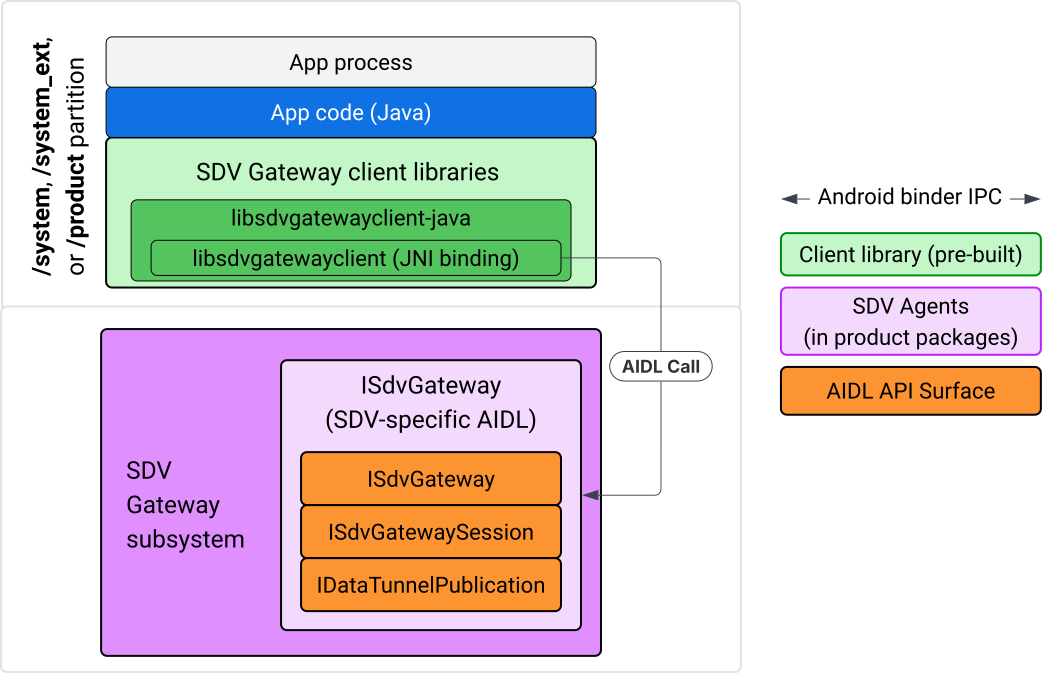
Figure 4. SDV Gateway on IVI Java app.
Specifically, the model:
- Dispatches all calls to the JNI layer.
- Glues the Java and C API.
- Defines AIDL interactions with the
ISdvGateway:- Init comms
- Find or create the RPC server
- Create the pub/sub
- Perform service discovery Data Tunnel interactions
- Receive notifications (for example, data available)
- Read and write messages (FMQ for pub/sub) for key pair creation and certs for TLS
Include Gateway client libraries
The Java library and JNI wrapper for the libsdvgatewayclient C API are
installed in an APEX on the IVI target. Add a compile time dependency to the
Java library stub, the Java library that must be used at run time, and the
required APEX containing the Java library.
android_app {
    name: "YourAppName",
    // ...
    static_libs: [
        "libsdvgatewayclient-java",
    ],
    libs: [
        "libsdvgatewayclient-java-sdk.stubs",
    ],
    uses_libs: [
        "libsdvgatewayclient-java-sdk",
    ],
    required: [
        "com.sdv.google.gateway.client",
    ],
    // ...
}
In the case of an unbundled app built outside of the SDV tree, the process is similar:
Copy the generated Java library stub JAR and supporting JAR for RPC in the app libs folder. For details, see
system/software_defined_vehicle/sdv_gateway/libsdvgatewayclient_apex/README.md.Add the stubs JAR as a compile-only dependency. For example, update the Gradle configurations to depend on the stubs by adding a
compileOnlyentry to thedependenciessection:dependencies { // The library supporting functions for SDK RPC. // Statically linked into the app APK. implementation(files("libs/libsdvgatewayclient-java.jar")) // Stub of the SDV-Gateway client library. // Used only for compilation; the real implementation is provided // by the com.sdv.google.gateway.client APEX at runtime. compileOnly(files("libs/libsdvgatewayclient-java-sdk.jar")) }Add the Java library to the app section of the
AndroidManifest.xmlfile.<manifest xmlns:android="http://schemas.android.com/apk/res/android"> <application> <!-- Declares that this app requires the SDV Gateway client library. The 'android:required="true"' attribute ensures the app won't install/run if the library is missing from the system. --> <uses-library android:name="libsdvgatewayclient-java-sdk" android:required="true" /> </application> </manifest>
Load libraries
Create an SdvGatewayClient object (provided by the client library):
import google.sdv.gateway.client.SdvGatewayClient;

// --- Inside your Activity, Service, or ViewModel ---

// Initialize the SDV Gateway Client
SdvGatewayClient gatewayClient = new SdvGatewayClient();
Init comms
Call initComms() using an app name as the service bundle name:
// Define a unique name for your service bundle (usually constant)
private static final String SERVICE_BUNDLE_NAME = "MySdvServiceBundle";

// ... inside an Activity or Service context ...

try {
    // Initialize communications with the SDV Gateway
    // context.getPackageName() provides "android.sdv.samples.gateway.client" or similar
    gatewayClient.initComms(context.getPackageName(), SERVICE_BUNDLE_NAME);

    Log.i("SDV_GATEWAY", "Communications initialized successfully");
} catch (Exception e) {
    // Unlike the C API which uses status codes,
    // the Java SDK often throws exceptions for initialization failures.
    Log.e("SDV_GATEWAY", "Failed to initialize communications", e);
}
Service discovery
The Java API contains methods to:
Get notified when service units with a specific unit type (or alternatively match a specific name) are being registered or unregistered.
List the current service units with a specific unit type (or alternatively match a specific service unit type name). To get notified of service unit changes, create a listener:
import google.sdv.gateway.client.ServiceUnitChangeListener;
import google.sdv.gateway.client.ServiceUnitChangeEventType;
import google.sdv.gateway.client.ServiceUnitDefinition;

// --- Implementation ---

ServiceUnitChangeListener listener = new ServiceUnitChangeListener() {
    @Override
    public void onServiceUnitChanged(
        ServiceUnitChangeEventType eventType,
        ServiceUnitDefinition serviceUnitDefinition
    ) {
        // This is triggered when services matching your criteria
        // are registered or unregistered on the vehicle network.
        if (eventType == ServiceUnitChangeEventType.REGISTERED) {
            // Handle new service discovery
        } else if (eventType == ServiceUnitChangeEventType.UNREGISTERED) {
            // Handle service removal
        }
    }
};
The addListenerForServiceUnitChangeByName Java method notifies the listener:
// 1. Register the listener for a specific service unit by name
AutoCloseable handle = gatewayClient.addListenerForServiceUnitChangeByName(
    new UnitNameDiscoveryArgs(
        "",                                   // sdvVmName (empty for local/auto-discovery)
        "android.sdv.samples.cluster",        // sdvPackageName
        "ClusterServer",                      // serviceBundleName
        "android-sdv-samples-cluster-cluster" // serviceUnitName
    ),
    listener
);

// --- Later in the application lifecycle ---

// 2. To stop receiving notifications and clean up resources, close the handle.
try {
    if (handle != null) {
        handle.close();
    }
} catch (Exception e) {
    Log.e("SDV_GATEWAY", "Error while closing the listener handle", e);
}
Alternatively, use the addListenerForServiceUnitChangeByType Java method to
notify the listener when services with the specified unit type are registered
or unregistered:
// 1. Register a listener based on the Service Unit Type
AutoCloseable handle = gatewayClient.addListenerForServiceUnitChangeByType(
    new UnitType(
        "com.android.testapp.sdvcarmonitor", // sdvPackageName
        "SunroofRpcServer",                  // serviceBundleName
        "Sunroof"                            // unitTypeName
    ),
    listener
);

// --- Execution Loop / Lifecycle ---

// 2. To stop receiving notifications and clean up memory, close the handle.
// This effectively unregisters the listener from the SDV Gateway.
try {
    if (handle != null) {
        handle.close();
    }
} catch (Exception e) {
    Log.e("SDV_GATEWAY", "Failed to close the service unit listener handle", e);
}
For addListenerForServiceUnitChangeByName and
addListenerForServiceUnitChangeByType, after being added, the listener is
notified of all registered service units. To get only registered service units
by name or type, use the listServiceUnitsByName and listServiceUnitsByType
Java APIs:
import google.sdv.gateway.client.ServiceUnitDefinition;
import google.sdv.gateway.client.UnitNameDiscoveryArgs;
import google.sdv.gateway.client.UnitType;

// --- 1. Synchronous Lookup by Specific Name ---
ServiceUnitDefinition[] definitionsByName = gatewayClient.listServiceUnitsByName(
    new UnitNameDiscoveryArgs(
        "",                                   // sdvVmName
        "android.sdv.samples.cluster",        // sdvPackageName
        "ClusterServer",                      // serviceBundleName
        "android-sdv-samples-cluster-cluster" // serviceUnitName
    )
);

// --- 2. Synchronous Lookup by Service Type ---
ServiceUnitDefinition[] definitionsByType = gatewayClient.listServiceUnitsByType(
    new UnitType(
        "com.android.testapp.sdvcarmonitor", // sdvPackageName
        "SunroofRpcServer",                  // serviceBundleName
        "Sunroof"                            // unitTypeName
    )
);

// Example processing
if (definitionsByType.length > 0) {
    ServiceUnitDefinition firstSunroof = definitionsByType[0];
    // Proceed to connect...
}
RPC server flow
SDV Gateway clients within IVI systems use Google remote procedure call (gRPC)
for communication with SDV services. These interactions rely on proto
definitions from the VSIDL catalog, which are consistent or similar to those
used on SDV Core. For Java apps, gRPC-Java is the chosen implementation. A
sample server proto definition, sunroof.proto, is provided for an app server.
service Sunroof {
    /**
     * Retrieves the current state of the sunroof (e.g., position, tilt, status).
     *
     * @param .google.protobuf.Empty - No input parameters required.
     * @return SunroofStateResponse - The current telemetry data for the sunroof.
     */
    rpc GetSunroofState(.google.protobuf.Empty) returns (SunroofStateResponse) {}
}
Link against the corresponding proto library and define the service:
import com.android.sdv.sdvgrpclibrary.SunroofGrpc;
import com.android.sdv.sdvgrpclibrary.SunroofStateResponse; // Assuming this is the generated class
import com.google.protobuf.Empty;
import io.grpc.stub.StreamObserver;

/**
 * Implementation of the Sunroof gRPC service.
 * This class handles the logic for the RPCs defined in your .proto file.
 */
static class SunroofGrpcImpl extends SunroofGrpc.SunroofImplBase {

    @Override
    public void getSunroofState(Empty request, StreamObserver<SunroofStateResponse> responseObserver) {
        // 1. Fetch current sunroof data (e.g., from a Hardware Abstraction Layer)
        int currentPosition = 50; // Example value: 50% open

        // 2. Build the Protobuf response message
        SunroofStateResponse response = SunroofStateResponse.newBuilder()
                .setPercentageOpen(currentPosition)
                .build();

        // 3. Send the response to the client using the observer
        responseObserver.onNext(response);

        // 4. Close the stream to signal that the RPC is finished
        responseObserver.onCompleted();
    }
}
Register the gRPC server with secure and insecure channel credentials:
// 1. Define the type signature for the service
UnitType unitType = new UnitType(
    "com.android.testapp.sdvcarmonitor", // sdvPackageName
    "SunroofRpcServer",                  // serviceBundleName
    "Sunroof"                            // typeName (Unit Type)
);

// 2. Register the RPC server with the Gateway
// The gateway creates a mapping between the ServiceUnitName and your implementation.
server = gatewayClient.registerRpcServer(
    "SunroofRpcServerImpl-1",                       // serviceUnitName (Unique instance name)
    unitType,                                       // unitType defined earlier
    "SUNROOF_GRPC_SERVER_VALUE_HOLDER".getBytes(),  // appMetadataValueHolder (Static discovery data)
    1,                                              // appMetadataVersion
    new SunroofGrpcImpl()                           // The actual gRPC service implementation
);
Internally, the client library creates the gRPC server object,
SdvGatewayClient.java, and also handles updates to the root certificates:
// 1. Initialize credentials (Insecure for dev, TLS for production)
ServerCredentials serverCredentials = InsecureServerCredentials.create();

// 2. Build and start the OkHttp-based gRPC server
final int bindAnyPort = 0;
final Server server = OkHttpServerBuilder
    .forPort(bindAnyPort, serverCredentials)
    .addService(gRpcServerImplementation) // Your SunroofGrpcImpl
    .build()
    .start();

// The assigned port can now be retrieved using server.getPort()
int actualPort = server.getPort();

// 3. Prepare the JNI data structure
// This object mirrors the ASDVGateway_ServiceUnitDefinition_t C struct
JniServiceUnitDefinition definition = new JniServiceUnitDefinition();

// Fill the RPC service definition params (Port, Name, Type, etc.)
definition.setPort(actualPort);
definition.setServiceUnitName("SunroofRpcServerImpl-1");

// 4. Perform the cross-language call
// This jumps from Java -> JNI -> ASDVGateway_Client_registerRpcServer (C API)
mJniClient.nativeRegisterRpcServer(definition);
RPC client flow
This code sample provides the server proto definition (tpms.proto) for the
server the app connects to as a client:
/**
 * The TPMS service provides real-time pressure and temperature
 * data for all tires on the vehicle.
 */
service Tpms {
    /**
     * Returns the full state of all monitored tires.
     */
    rpc GetTpmsState(.google.protobuf.Empty) returns (TpmsStateResponse) {}

    /**
     * A filtered query that returns only the tires
     * below the recommended pressure threshold.
     */
    rpc GetLowTires(.google.protobuf.Empty) returns (LowTiresResponse) {}
}
Link against the corresponding proto library:
import com.android.sdv.sdvgrpclibrary.TpmsGrpc;
import io.grpc.ManagedChannel;

// --- Inside your Client Application ---

// 1. Request a ManagedChannel from the Gateway for a specific service unit
ManagedChannel managedChannel = gatewayClient.connectToRpcServerByName(
    "",                                     // sdvVmName (empty for local/auto-lookup)
    "android.sdv.samples.cluster",          // packageName
    "ClusterServer",                        // serviceBundleName
    "android-sdv-samples-cluster-cluster"  // serviceUnitName
);

// 2. Use the channel to create a gRPC stub (e.g., for the TPMS service)
TpmsGrpc.TpmsBlockingStub tpmsStub = TpmsGrpc.newBlockingStub(managedChannel);

// 3. Now you can call RPC methods directly
// TpmsStateResponse response = tpmsStub.getTpmsState(Empty.getDefaultInstance());
Internally, the ASDVGateway_Client_findRpcServerByName API is called to find
the RPC server. If the RPC server is found, the managed channel is created in
insecure mode or designated to use the TLS configuration, similarly to the RPC
server flow, depending on the Service Discovery configuration. The app creates
the stubs with the ManagedChannel object and call server methods:
import com.android.sdv.sdvgrpclibrary.TpmsGrpc;
import com.android.sdv.sdvgrpclibrary.TpmsStateResponse;
import com.google.protobuf.Empty;
import io.grpc.stub.MetadataUtils;

// 1. Create a "Blocking Stub" from the existing ManagedChannel.
// We apply an interceptor to attach mandatory metadata (headers)
// required by the SDV Gateway for authorization.
TpmsGrpc.TpmsBlockingStub tpmsStub = TpmsGrpc.newBlockingStub(managedChannel)
    .withInterceptors(MetadataUtils.newAttachHeadersInterceptor(mMetadata));

// 2. Execute the RPC call.
// Because this is a "BlockingStub," the thread will wait here until
// the vehicle service responds or times out.
TpmsStateResponse tpmsStateResponse = tpmsStub.getTpmsState(Empty.getDefaultInstance());

// 3. Extract the domain-specific state object from the Protobuf response.
// 'newState' can now be used to update your UI or application logic.
newState = tpmsStateResponse.getTpmsState();
Switch the default network of the process
You might need to switch from SDV-RPC VLAN as the default network of the process
to open sockets for internet-bound connections. Call
unbindProcessFromSdvRpcNetworkInterface and
bindProcessToSdvRpcNetworkInterface to unbind and rebind the process to the
SDV-RPC VLAN. The two calls act as global switches, switching the network
interface that sockets are bound to for all threads of the process.
// 1. Redirect all socket traffic from this process to the SDV-RPC VLAN.
// This call is required for making RPC calls or hosting RPC services for SDV.
gatewayClient.bindProcessToSdvRpcNetworkInterface();

// --- Process is now communicating over the SDV-RPC interface ---

// 2. Revert the process network binding back to the "default" interface.
// This allows the app to access internet resources again.
gatewayClient.unbindProcessFromSdvRpcNetworkInterface();
Create publisher and publish messages
// 1. Define the interface and type for the publication
UnitType unitType = new UnitType(
    "android.sdv.samples.tires.interface", // sdvPackageName
    "TirePressurePublisherInterface",      // serviceBundleName
    "TirePressure"                         // typeName
);

// 2. Configure the Publisher's buffer and message constraints
PublisherUnitMetadata publisherUnitMetadata = new PublisherUnitMetadata(
    1,   // version
    64,  // message size in bytes (fixed size for performance)
    128  // max message count (buffer depth)
);

// 3. Create the Publication instance through the Gateway
Publisher tirePublisher = gatewayClient.createPublication(
    "tire-pressure-service-unit-name",
    unitType,
    publisherUnitMetadata
);

// 4. Prepare and publish a message
// In a real app, you would encode your sensor data into this byte array
byte[] msg = new byte[publisherUnitMetadata.messageSizeBytes];

// ... fill msg with data ...

tirePublisher.publish(msg);
Internally, the Java createPublication and publish APIs rely on the native
ASDVGateway_Client_createPublication and
ASDVGateway_Client_readAvailableMessages APIs. For detailed information on the
C API, see Use SDV Gateway on an IVI native service. The
Publisher object provides a context for writing messages and managing the
publication's lifecycle.
Create subscriber with notification listener
The Java API allows a listener to be passed as a parameter to the subscribe to
publication method and returns a Subscription object.
Listeneris notified when data is available for the subscribed publication.Subscriptionacts as a context object and can be used to read messages and close the subscription.
// 1. Define the Listener to handle incoming data notifications
SubscriptionNotificationListener listener = new SubscriptionNotificationListener() {
    @Override
    public void onSubscriptionNotification(
        Subscription subscription,
        SubscriptionNotificationType notificationType
    ) {
        // Only process if the notification indicates new data is ready
        if (notificationType != SubscriptionNotificationType.DataAvailable) {
            return;
        }

        // Read the message from the subscription buffer
        byte[] content = subscription.readMessage();

        // Note: This callback often runs on a background thread provided by the SDK.
        // If you need to update the UI, use a Handler or View.post().
        processTireData(content);
    }
};

// 2. Subscribe to the publication by its unique name
Subscription tireSubscription = gatewayClient.subscribeToPublicationByName(
    "",                                  // sdvVmName (empty for auto-lookup)
    "android.sdv.samples.dt_publisher",  // packageName
    "SdvGatewayDtPublisher",             // serviceBundleName
    "tire",                              // serviceUnitName
    listener
);

// 3. Read Messages
// You can poll or register callbacks for new messages.
// When polling the message, call this method in a loop.
// When registering callbacks, call this method to get the message payload.
byte[] manualContent = tireSubscription.readMessage();
Code sample
Listener callbacks are invoked on a single thread managed by the client to
minimize processing within listeners to prevent delays in receiving
notifications for other subscriptions. The Java layer leverages a C API for
subscription management, notification handling, and message retrieval. For a
demonstration of API usage, see the Java app sample provided in the binary file
at system/software_defined_vehicle/samples/sdv_gateway/README.md.
Required permissions
Calling SDV Gateway client API doesn't need special permissions, but you need to apply proper SELinux Rules for your apps.
- For data tunnel subscriptions and publications, you don't need any permissions.
- For SDV RPC, you need the following permissions:
android.permission.INTERNETandroid.permission.CONNECTIVITY_USE_RESTRICTED_NETWORKS
For android.permission.CONNECTIVITY_USE_RESTRICTED_NETWORKS, you also need an
allowlist file under etc/permissions in the same partition as your app, for
example, for the SdvCarMonitorTestApp (package name
com.android.testapp.sdvcarmonitor), the file looks like:
<?xml version="1.0" encoding="utf-8"?>

<permissions>
    <privapp-permissions package="com.android.testapp.sdvcarmonitor">
        <permission name="android.permission.CONNECTIVITY_USE_RESTRICTED_NETWORKS"/>
    </privapp-permissions>
</permissions>
SELinux rules
To use SDV Gateway APIs, Java apps require the same permissions as the native
services. Grant these permissions using the sdv_gateway_client_domain()
SELinux macro:
sdv_gateway_client_domain(my_oem_sdv_gateway_client_app)
The OEM defines the my_oem_sdv_gateway_client_app domain for the Java apps
allowed to use the SDV Gateway. Use the SDV Gateway only from system and
privileged apps.
Code locations
Get the source code for the SDV Gateway at
system/software_defined_vehicle/sdv_gateway/. You can get SDV Gateway samples
for:
- Client C API:
system/software_defined_vehicle/samples/sdv_gateway/NativeSdvGatewayTestApp/ - Client Java API:
system/software_defined_vehicle/samples/sdv_gateway/SdvCarMonitorTestApp/