
This page provides an overview for accessing, building, and running the Display Safety components, including the high availability renderer (HAR), DriverUI, and the safety monitor, across the Software Defined Vehicle (SDV) platforms.
Code access
This section covers getting access to the codebase for the HAR and DriverUI
Display Safety components.
High availability renderer
The codebase for the high availability renderer (HAR) is available as part of
the main repository checkout at packages/services/display_safety/.
The codebase for HAR is structured as follows:
- Framework: Contains core framework interfaces for platform, rendering, animation, and audio.
- Reference: Contains platform-specific implementations for framework interfaces, as well as the code for the HAR reference app, and the safety toolchain (Design Compiler, safety monitor).
- Service: Android-specific services for sending and receiving vehicle data between components, and definitions for the APEX data packages.
- Prebuilts: Provides wrappers for prebuilt binaries such as the Impeller graphics library.
The Harry reference app code is located at
packages/services/display_safety/reference/harry_app.
For detailed directory structure of HAR see Display Safety Code structure
Safety monitor
The codebase for safety monitor is available as part of the main repository
checkout at packages/services/display_safety/reference/safety-monitor.
The safety monitor code is structured as follows:
main.rs: Fetches telltale artifacts, initializes the vehicle data server, and telltale monitoring loops. Information on telltale visibility is compared with telltale inspection results, with the results provided using SDV logs.Vehicle_data_server.rs: The server which subscribes to the vehicle data, updating telltale visibility for the main loop.Telltale_monitoring.rs: Runs in a loop, fetching a copy of the screenbuffer using the screencap crate, and inspecting the specified regions for telltales. Results of telltale inspections are then sent to the main loop.
DriverUI
DriverUI is available as part of an unbundled codebase, which you can access
from ub-automotive-master branch.
mkdir ub-automotive-master && cd ub-automotive-master
repo init -u https://android.googlesource.com/platform/manifest -b ub-automotive-master
repo sync -cq
For more information about unbundled and Google source, see Integrate unbundled apps.
Build and run
This section details the process for compiling and executing the targets for the HAR within SDV Media and the DriverUI within SDV In-Vehicle Infotainment (IVI) to achieve the full cluster solution with SDV.
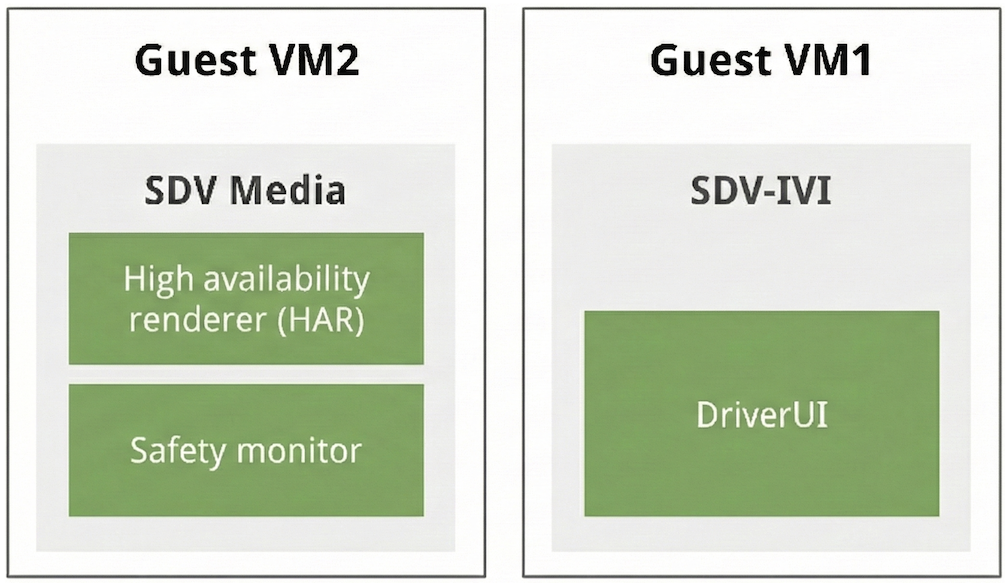
Figure 1. Display Safety dual VM structure.
Build HAR and SDV Media target
- Base media target:
sdv_media_cf- Description: A dedicated target for the SDV media stack, facilitating isolated testing of various media frameworks.
- Directory location:
device/google/sdv/
- HAR integrated target:
sdv_media_har_cf- Description: This target integrates the media stack with the HAR, executing SDV Media on Cuttlefish.
- Directory location:
device/google/sdv_dsplay_safety/ - Build execution:
# In the root of the Android source
source build/envsetup.sh
lunch sdv_media_har_cf-aosp_current-userdebug
m -j
Build the DriverUI
From the ub-automotive-master branch, you can build unbundled apps using the
CommandLine or AndroidStudio.
In Android Studio, import the Gradle file:
packages/apps/Car/libs/aaos-apps-gradle-project/build.gradle
This is the main Gradle project with all unbundled apps including DriverUI. Build the project using Gradle:
# To build only DriverUI module of aaos-apps-gradle-project use
./gradlew :driver-ui:assemble
After a successful build, the DriverUI APK is available at
out/aaos-apps-gradle-build/driver-ui/outputs/apk/default/debug/
driver-ui-default-debug.apk
DriverUI code is available at packages/apps/Car/DriverUI
Note: DriverUI is a submodule of the main Gradle project, so all Gradle
tasks are run using aaos-apps-gradle-project.
Build SDV IVI target with DriverUI
- Base Target:
sdv_ivi_cf- Description: This serves as the foundational SDV target for IVI on the x86-64 architecture.
- Directory location:
device/google/sdv/
DriverUI Integrated Target:
sdv_ivi_cf_ds- Description: This target extends the base IVI configuration to incorporate Display Safety components. This target is essential for the validation of Display Safety services and interactions within the instrument cluster.
- Directory location:
device/google/sdv_dsplay_safety/ Add DriverUI binary: Copy
DriverUI.apktopackages/apps/Car/DriverUIPrebuiltalong with a BlueprintAndroid.bpfile.# Create a blueprint file, contents of this file are shown in the next step touch /path/to/aosp_repo_root/packages/apps/Car/DriverUIPrebuilt/Android.bp # Copy DriverUI.apk built cp /path/to/ub-automotive-master/out/aaos-apps-gradle-build/driver-ui/outputs/apk/default/debug/driver-ui-default-debug.apk /path/to/aosp_repo_root/packages/apps/Car/DriverUIPrebuilt/DriverUI.apk
The Android.bp should be set up to use the module name DriverUIPrebuilt and
override DriverUIStubApp:
android_app_import {
    name: "DriverUIPrebuilt",
    overrides: ["DriverUIStubApp"],
    apk: "DriverUI.apk",
    privileged: true,
    product_specific: true,
    certificate: "platform",
    required: ["allowed_privapp_com.android.car.driverui"],

    optional_uses_libs: [
        "androidx.window.extensions",
        "androidx.window.sidecar",
    ],
    enforce_uses_libs: false,
    dex_preopt: {
        enabled: false,
    },
}
Build execution:
# In the root of the Android source
source build/envsetup.sh
lunch sdv_ivi_cf_ds-aosp_current-userdebug
m -j
Target deployment
Upon the successful completion of the build process for both targets, Cuttlefish utilities help initiate the targets as described in this section.
SDV Media and HAR deployment
The HAR target is created using the predefined sdv-media-config.json
configuration, which is specified within device/google/sdv_media_cf.mk.
Note: SDV Media and SDV IVI are both launched in Unlocked boot mode for
Display Safety cluster. For detailed information, see SDV Boot Mode.
# In the root of the Android source
source build/envsetup.sh
lunch sdv_media_har_cf-aosp_current-userdebug
cvd create --extra_bootconfig_args="androidboot.sdv.boot_mode=unlocked androidboot.sdv.instance_name=instance1 androidboot.virt.address=3"
Once created terminal will show logs to access target in browser on a localhost
port: Point your browser to https://localhost:8443 to interact with the
device.
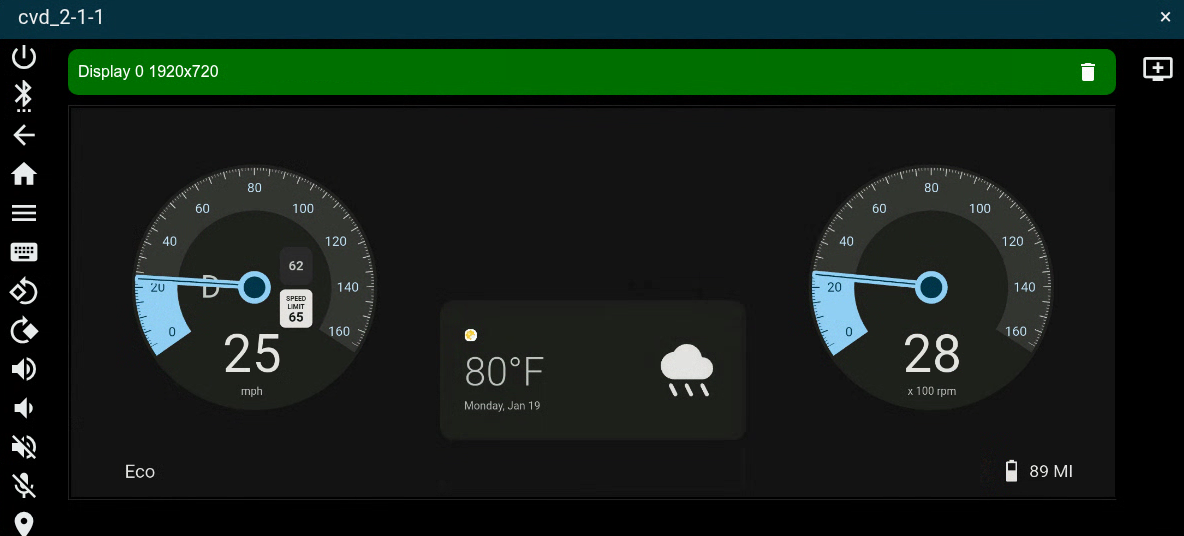
Figure 2. Display Safety SDV Media VM with HAR.
SDV IVI and DriverUI deployment
The SDV IVI DriverUI target initiates using the existing
sdv-ivi-config.json defined in device/google/sdv_ivi_cf.mk. You can also
specify additional boot configuration parameters and appropriate display
dimensions for the cluster screen.
# In the root of the Android source
source build/envsetup.sh
lunch sdv_ivi_cf_ds-aosp_current-userdebug
cvd create --extra_bootconfig_args="androidboot.sdv.boot_mode=unlocked androidboot.sdv.instance_name=instance2 androidboot.virt.address=4" --display1=width=1920,height=720
After the target is initiated, the terminal shows logs to access target in
browser on a localhost port: Point your browser to https://localhost:8443 to
interact with the device.
The deployment of the SDV-IVI and DriverUI targets initializes two
displays: one for the SDV-IVI system and another for the DriverUI. The
DriverUI operates as a privileged cluster app, leveraging the
ClusterHomeManager class (also known as Cluster2).
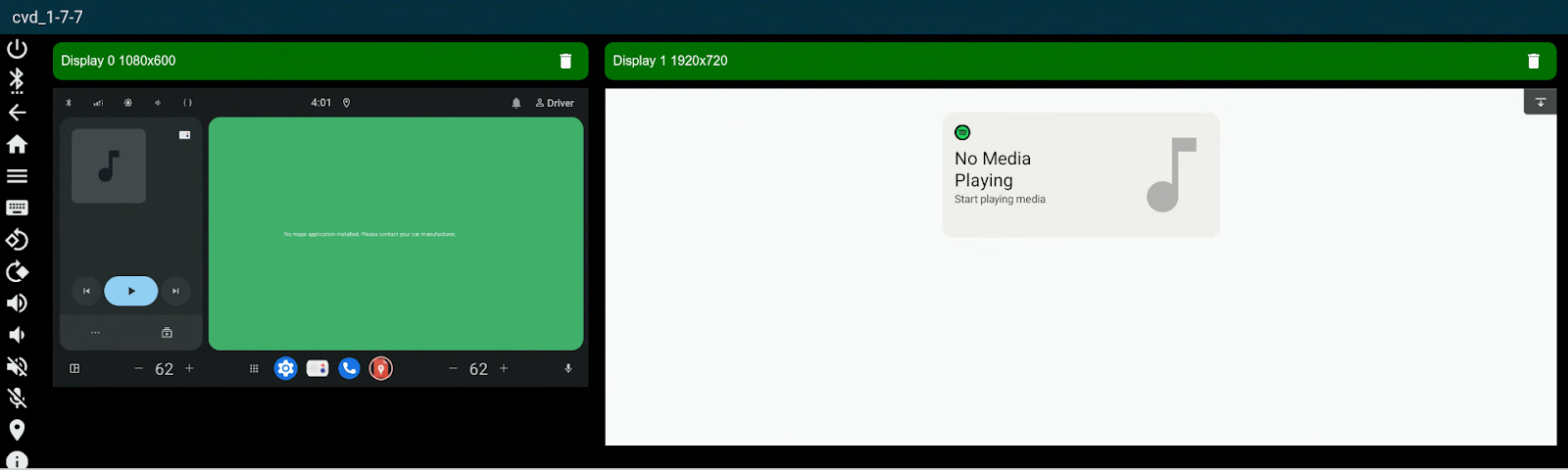
Figure 3. Display Safety SDV IVI VM with DriverUI.
Deployment of the dual VM cluster
Cuttlefish provides the capability to launch two Virtual Machines (VMs) using a dual VM configuration to achieve display overlay.
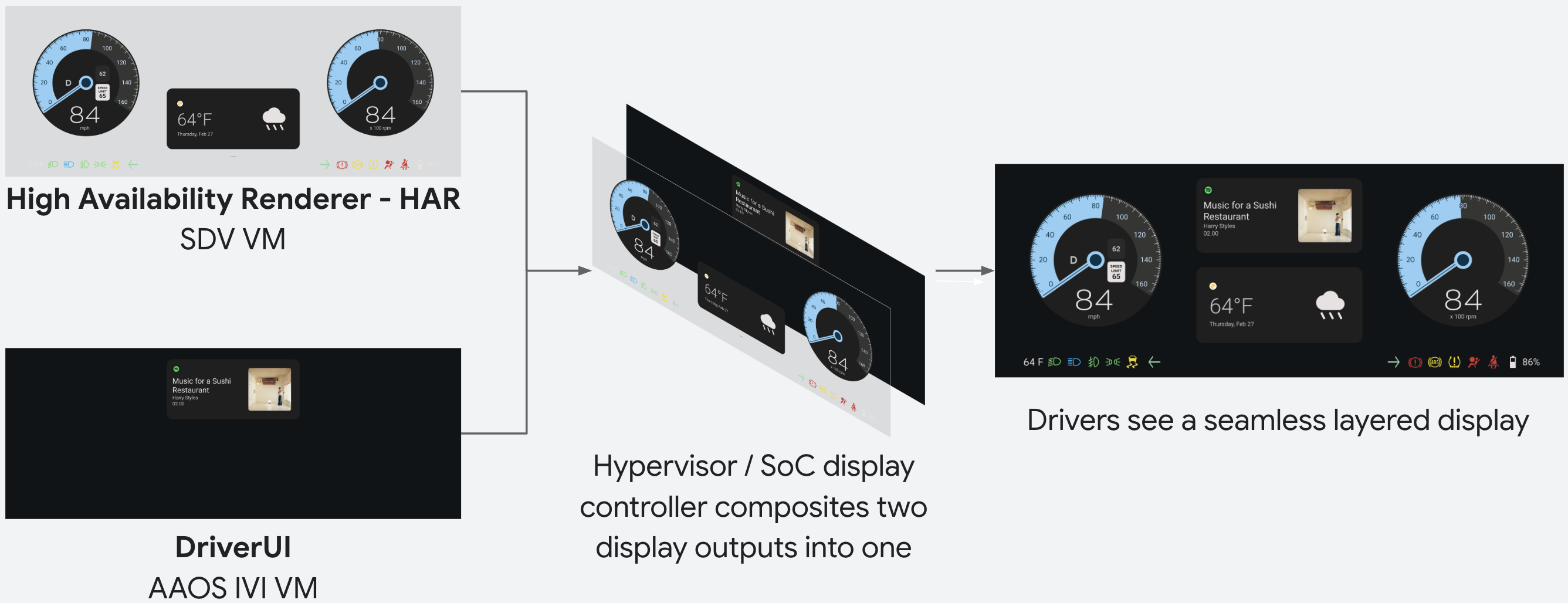
Figure 4. Display Safety display composition overview.
You can launch the dual VM configuration using ds-toolkit
available at packages/services/display_safety/service/.
m ds_toolkit
ds_toolkit launch
After the configuration is launched, the terminal shows logs to access target in
browser on a localhost port: Point your browser to https://localhost:8443 to
interact with the device.
This launchs both Cuttlefish targets in a fully operational cluster with both virtual machine displays overlaid.
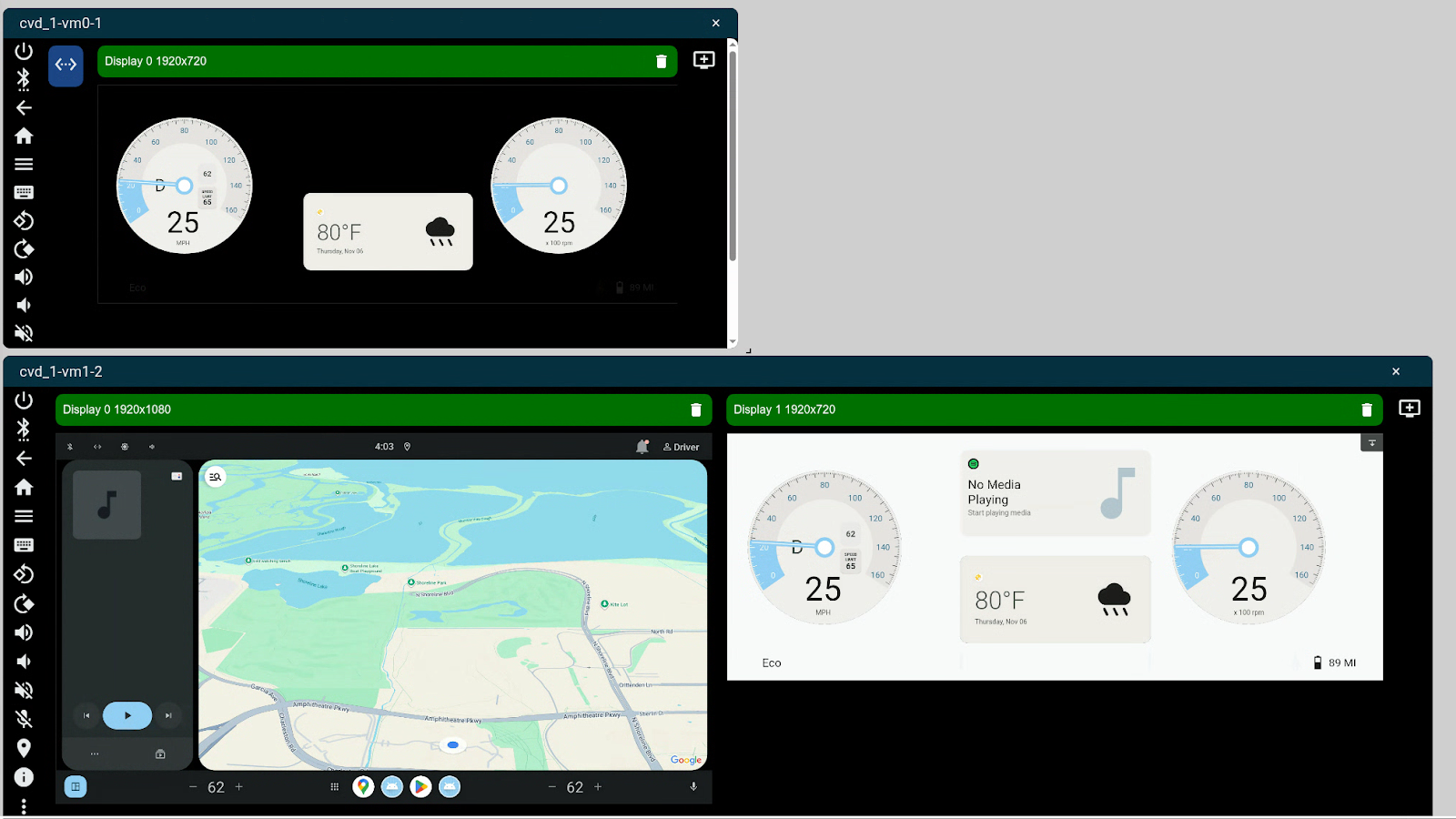
Figure 5. Display Safety full cluster with SDV Media and SDV IVI VM.
Building safety monitor
The safety monitor is built by default for either SDV Media target:
# In the root of the Android source
source build/envsetup.sh
lunch sdv_media_har_cf-aosp_current-userdebug
m -j
At run time, the safety monitor uses a default set of compiler artifacts generated and packaged into the APEX for the reference cluster display.
New artifacts may be generated by running har-design-compiler. This tool
runs on the target to generate artifacts from a design. We recommend to run
the tool, pulling the new artifacts from the target, and rebuilding the image.
The tool is built and installed on the target by default.
# Run the compiler on the target
adb shell har_design_compiler -c </path/to/artifacts> -o /data/local/tmp/
# Pull the artifacts to the local filesystem
adb pull data/local/tmp/artifacts services/harry-prebuilt/data/assets/
# Rebuild the image
m -j
The safety monitor initializes when the target is booted. The safety monitor will run continuously in a loop to verify safety-critical elements on the screen against what is expected by analyzing the screen buffer and incoming vehicle data signals.
You can view safety monitor logs at any time:
adb logcat | grep har-safety-monitor