
ATrace performs performance tracing for HAR using the external crate
tracing_android_trace.
Enable tracing for HAR
To enable performance tracing for the reference harry-app, enable
the Cargo feature harry-app-platform-specific/tracing-android.
# crates/reference/harry-app/Cargo.toml

harry-sdv = ["harry-app-platform-specific/tracing-android", ...]
Add custom traces to HAR
    let custom_trace = tracing::info_span!("custom_trace_span").entered()
    // code here will be traced
    drop(custom_trace)
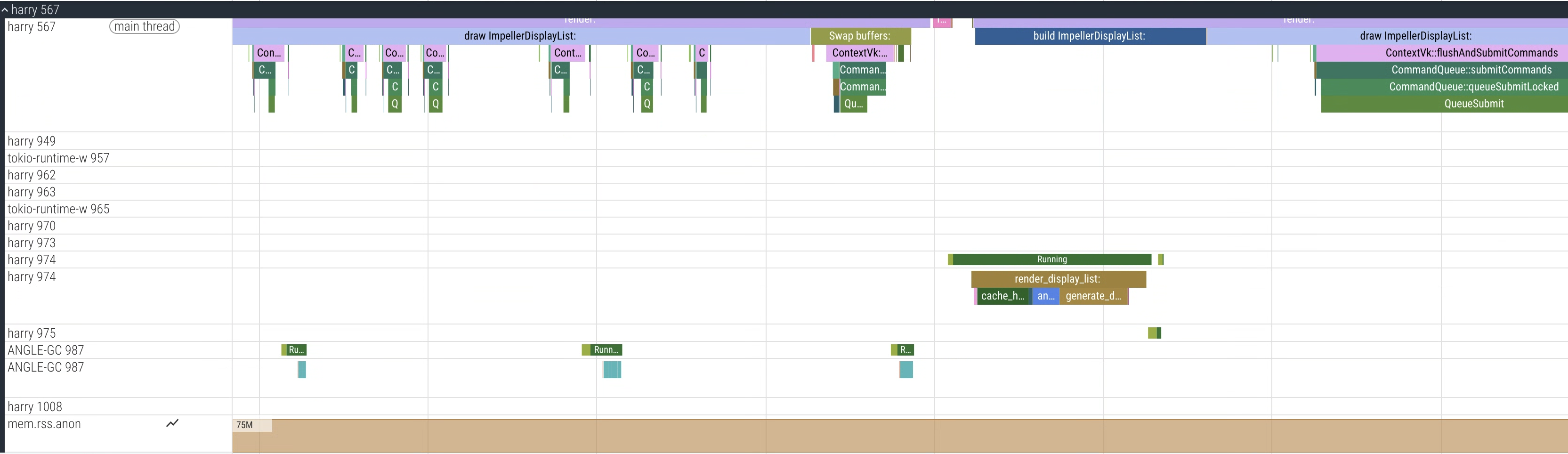
Figure 1. Perfetto UI showing a sample trace from the harry process (HAR)
Performance tracing for DriverUI
DriverUI uses Android system tracing; no extra configuration is required.
Add custom traces to DriverUI
You can add custom events to Kotlin code using the Developer Guide.
Collect a trace
We recommend Torq to collect traces on AAOS.
Use Torq
Torq is a CLI tool for collecting performance traces on AAOS and SDV.
Clone the Torq repository.
Follow instructions in the repository to build and then run:
export ANDROID_SERIAL=<your_device_serial>
# Collect a 7 second trace
torq -d 7000
Collect a unified performance trace across both VMs
Because Display Safety runs across two VMs, collecting traces from both VMs at the same time helps identify issues.
- Torq supports unified traces through Perfetto's
traced_relay. - To capture a unified trace, first identify the cid for both VMs:
# Get the cid for SDV Media VM. For example: 3
adb -s <sdv_media_vm_serial> shell getprop ro.sdv.vsock_local_cid

# Get the cid for SDV IVI VM. For example: 4
adb -s <sdv_ivi_vm_serial> shell getprop ro.sdv.vsock_local_cid
In this example, use the SDV-Media VM (cid=3) as a relay.
# Configure your VMs for unified tracing
torq vm configure --primary <sdv_ivi_vm_serial> --primary-cid 4 --secondary <sdv_media_vm_serial>
# Collect a 7 second trace from the SDV IVI VM, it will now collect a unified trace
torq --serial <sdv_ivi_vm_serial> -d 7000
For example:

Figure 2. Perfetto UI showing a sample Unified Trace with both processes
from both VMs: harry (HAR) and com.android.car.driverui (DriverUI).
Collect a boot trace
To collect a boot trace for analyzing boot performance, you must enable a few flags.
Set the SDV-specific persistence flag for boot traces.
export ANDROID_SERIAL=<your_device_serial>
adb root
adb shell setprop persist.debug.sdv.boottrace 1
adb shell setprop persist.debug.perfetto.boottrace 1
Set kernel cmdline parameter
androidboot.fastboot.boottrace=enabled.
# For Cuttlefish, set when creating CVD
cvd create -extra_kernel_cmdline=androidboot.fastboot.boottrace=enabled
Use record_android_trace
Do the following:
# Set your adb device serial
export ANDROID_SERIAL=<your_device_serial>
# Run record_android_trace from the Android repo
cd /<your_repo_path>
build/envsetup.sh

$ANDROID_BUILD_TOP/external/perfetto/tools/record_android_trace --config $ANDROID_BUILD_TOP/system/software_defined_vehicle/core_services/samples/tracing/config/trace_cfg.pbtx